New Release: 6th August 2026
This release brings several improvements across capture, returns, and everyday usability.
You can now capture quantity and unit price details to support inventory tracking, prepare EU OSS returns for cross-border VAT, and follow a clear edit and delete history on Excel and AI Receipt transactions.
We’ve also launched capture posting for Xero Ledger plans - so you can post captured transactions as Spend or Receive Money - and introduced accessibility options so everyone can tailor the experience to their needs.
Quantity Capture for Inventory Tracking
Ideal when inventory is tracked in Xero, QuickBooks Online or Zoho Books
We’ve added new fields on the capture side so you can record Quantity, Unit Price (inc tax), and Discount against transaction lines. This makes it much easier to track inventory-style purchases and sales, because line totals are no longer just a single amount - you can see how quantity and price build up the final figure.
When quantity and unit price are used, Total and Net are calculated for you using a clear formula: Total equals Quantity × Unit Price minus Discount, and Net equals Total minus Tax. You’ll see these fields in the entity Transactions table and drawer, so you can review and correct line details without leaving your capture workflow. For connected accounting entities (such as Xero, QuickBooks, and Zoho), you can also turn on Capture Inventory / Items in scanning preferences, so items found in documents can be captured and mapped to your inventory.
The goal is simple: give you accurate line-level detail for stock and item tracking, reduce manual recalculation, and keep capture aligned with how inventory actually moves through your books.
EU OSS Return for the European Union
One-Stop-Shop return for cross-border business-to-consumer (B2C) e-commerce activities
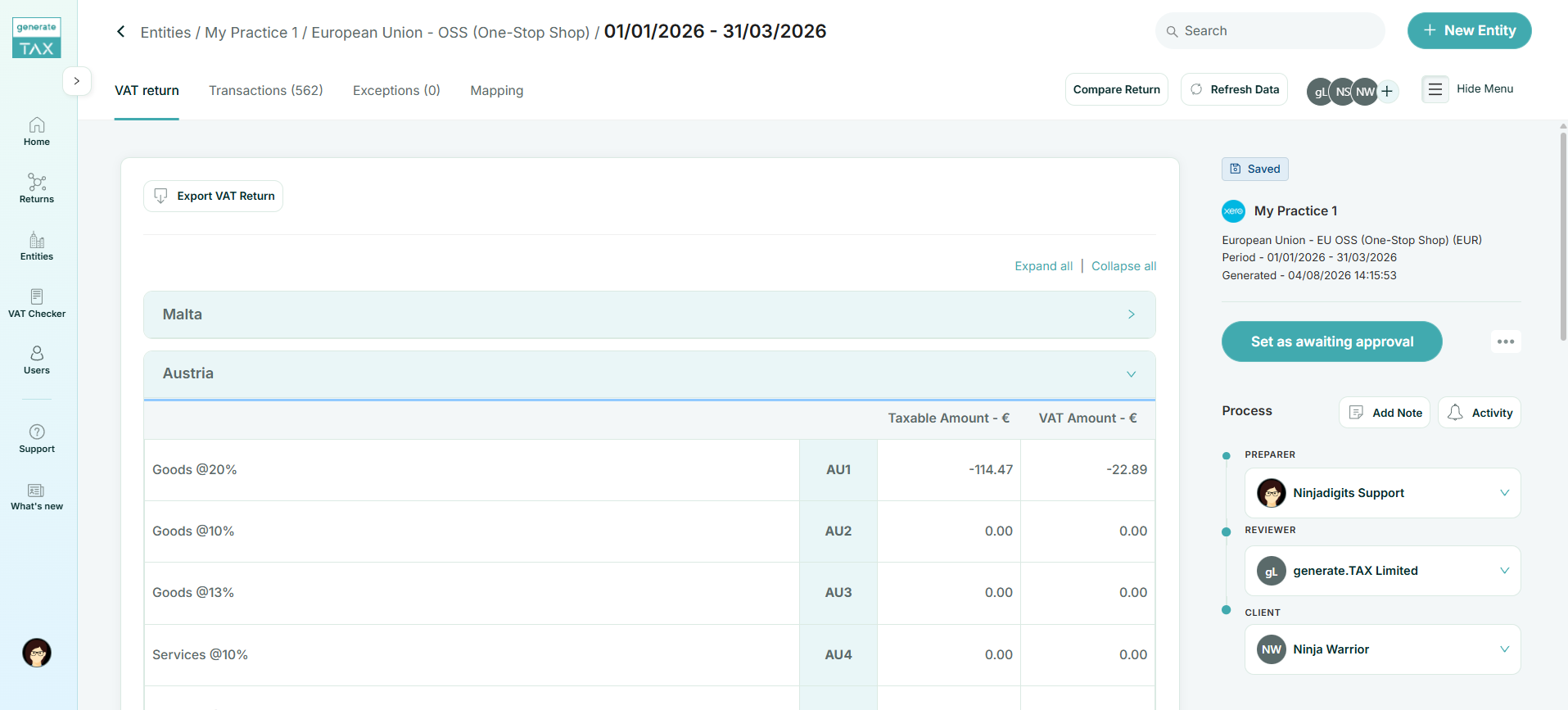
We’re introducing support for the EU OSS (One-Stop Shop) return, designed for businesses with cross-border VAT obligations across EU member states. Instead of managing fragmented country-by-country reporting outside the platform, you can set up an OSS return type and work within a structured, multi-country workflow inside generate.TAX.
When you add or edit a return mapping, you can select EU OSS (One-Stop Shop) and choose the countries that apply to your reporting. The mapping experience is scoped to those countries, and you’ll be guided if any selected countries are still missing tax-rate mappings. On the VAT report side, OSS submissions are organised by country sections with the relevant taxable amount and VAT amount boxes, so the return reflects the structure expected for One-Stop Shop reporting.
This feature is aimed at entities that need to report OSS obligations clearly and consistently - bringing country selection, mapping, and report presentation together in one place.
Edit and Delete Tracking with Timeline
Track timelines changes for transactions in Excel and the AI Receipts
For Excel / CSV and AI Scan Receipts & Bills entities, you can now track edits and deletions on transactions with a dedicated history experience. When a line is changed or removed, it’s no longer a silent update - you get visibility into what happened, when it happened, and who made the change.
In the Transactions tab, edited and deleted rows are clearly marked, and you can use Show deleted to bring soft-deleted transactions back into view. Opening View History gives you a timeline (or table) of versions, including original, updated, and current states, along with what changed between them. For deletions, you’ll also see when a transaction was deleted and by whom.
This is especially valuable for teams that collaborate on file-based or AI-captured data, where accountability and auditability matter. You can review before-and-after differences, understand the trail of updates, and retain visibility of deleted lines when you need to investigate or recover context.

Capture Posting for Xero Ledger Plans
Capture now works with the Xero Ledger plan
We’re launching support for using capture with Xero Ledger entities. Until now, Ledger-plan organisations sat outside the usual capture-to-post flow; you can now capture documents and post them straight into Xero when the entity is on a Ledger plan.
Because Xero Ledger posts differently from standard Xero, captured transactions are sent as Spend Money or Receive Money bank transactions rather than journals or invoices. At the ready-to-post step you’ll be asked to Select Account, and posting stays disabled until a bank account is chosen - so the transaction lands in the right place in Xero. You’ll also see a clear explanation of this Spend/Receive behaviour before you confirm, so it’s obvious how Ledger posting works at the moment it matters.
Accessibility
We’ve added accessibility options so you can adjust generate.TAX to suit how you read, navigate, and interact with the product. From the user menu, open Accessibility to set preferences such as text size, text spacing, high contrast, emphasised links, stronger focus outlines, and motion preferences (follow system, always reduce, or keep animations).
On login and sign-up, Accessibility mode offers a clearer starting experience with field labels, stronger contrast, and more visible focus and link styles. We’ve also published an accessibility statement and a skip-to-main-content path to support keyboard and assistive-technology users. These settings are personal and available to everyone - no plan upgrade required - so each user can tune the interface for comfort and clarity.

This release also includes a number of small improvements and bug fixes including:
- Improved the way reconcilation exceptions are handled
- Mapping screen has new collapsible sections to make it easier to fill in sections.